
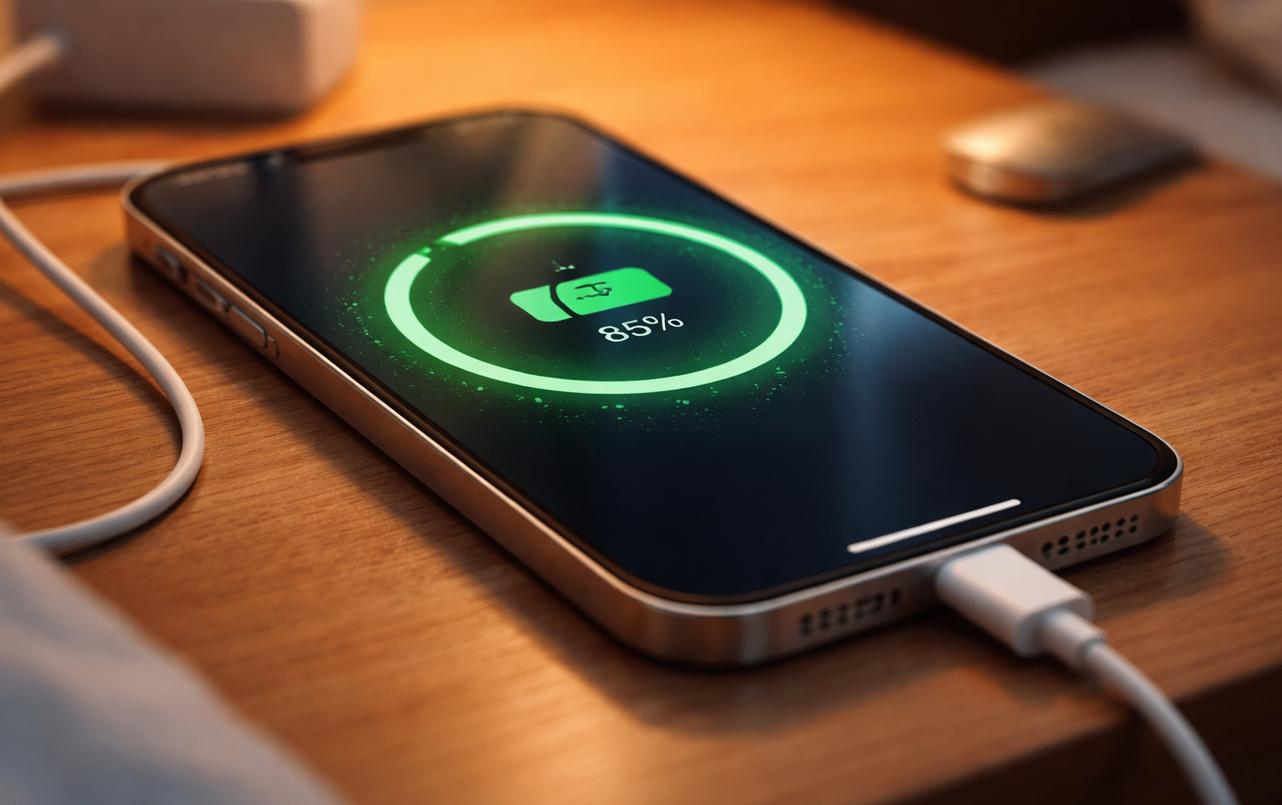
How to Increase Smartphone Battery Life: 12 Tips That Actually Work
Smartphones have become an essential part of everyday life. We use them for calls, social media, photography, video recording, gaming, online payments, and work. However, one common problem affects almost every smartphone user: battery life.
If your phone battery drains quickly, you may find yourself charging it several times a day. Although battery capacity and age play an important role, your settings and daily habits can also affect how long your phone lasts.
In this guide, we will explain 12 practical ways to increase smartphone battery life on Android phones and iPhones.
1. Reduce Screen Brightness
The display is one of the major power consumers on a smartphone.
Keeping your screen brightness at maximum all the time can drain the battery faster. Use automatic brightness or manually lower the brightness to a comfortable level.
You can also reduce screen brightness when using your phone indoors.
2. Reduce Screen Timeout
Screen timeout controls how long your display stays active after you stop using the phone.
A longer timeout means the screen may remain on unnecessarily.
Open your display settings and choose a shorter screen timeout. For example, 30 seconds may be suitable for many users, depending on their needs.
On iPhones, review the Auto-Lock setting.
3. Turn On Battery Saver or Low Power Mode
Android phones generally include Battery Saver or a similar power-saving feature. iPhones provide Low Power Mode.
These features can reduce background activity, automatic syncing, and certain visual or performance features to help extend battery life.
Enable them when your battery is low or when you need your phone to last longer.
4. Check Battery Usage
If your battery drains unusually quickly, identify which applications use the most power.
On Android, look for Battery usage in Settings. On iPhone, open Settings and select Battery.
Review the apps that consume the most energy. Some applications may use power because of background activity, frequent notifications, location access, or heavy screen usage.
Do not automatically uninstall every app with high usage. Video, navigation, and gaming applications naturally consume more power when actively used.
5. Limit Unnecessary Background Activity
Some applications continue to refresh or perform tasks when you are not actively using them.
Review background app activity and restrict unnecessary apps where your phone allows it.
You can also close or remove applications that you no longer use. However, repeatedly force-closing every application is not always necessary and may sometimes use additional power when reopening apps.
6. Turn Off Unnecessary Location Services
GPS and location services can consume battery, particularly when applications frequently access your location.
Review location permissions and allow access only when necessary.
For example, a navigation application may need location access while you are travelling, but a simple photo editing application may not need continuous access.
On both Android and iPhone, you can review location permissions through Settings.
7. Manage Wi-Fi, Bluetooth and Mobile Data
Wireless connections can contribute to battery consumption, particularly when your phone struggles to maintain a signal.
Turn off Wi-Fi, Bluetooth, or mobile hotspot when you do not need them. Avoid repeatedly switching settings without a reason, though; modern phones are designed to manage many wireless connections efficiently.
If mobile coverage is very weak, your phone may use additional power searching for a network.
8. Reduce Unnecessary Notifications
Every notification can wake your screen or cause background activity.
Review your notification settings and disable alerts from applications that are not important.
Keep notifications enabled for essential services such as banking, communication, and security alerts.
A less cluttered notification system can also improve your overall smartphone experience.
9. Avoid Extreme Temperatures
Temperature can affect battery performance and long-term battery health.
Avoid leaving your smartphone in direct sunlight, inside a hot vehicle, or near other heat sources.
Very cold conditions can also temporarily reduce battery performance.
If your phone becomes unusually hot while charging or performing normal tasks, check its applications and charging accessories. Follow the manufacturer’s safety guidance.
10. Use a Reliable Charger and Cable
Use a charger and cable that are compatible with your smartphone and meet the manufacturer’s recommendations.
Low-quality or damaged charging accessories can create safety risks and unreliable charging behaviour.
Avoid using damaged cables, loose connectors, or accessories from unknown sellers. Fast charging is convenient, but use a supported charging system rather than experimenting with incompatible equipment.
11. Keep Your Phone Software Updated
Software updates can include bug fixes, security improvements, and changes to power management.
Check for updates in your phone’s system settings and install official updates when appropriate.
If battery drain begins after an update, give the phone some time to complete background tasks such as indexing and syncing. If the issue continues, check battery usage and the manufacturer’s support guidance.
12. Check Battery Health
Smartphone batteries gradually lose their ability to hold a charge as they age.
If your phone’s battery life has become significantly shorter, check its battery health information if your device provides it.
On supported iPhones, open Settings > Battery > Battery Health or the corresponding battery health section for your iOS version.
Android battery health information varies by manufacturer and model.
If the battery is damaged, swollen, or showing serious performance problems, stop using the device if it is unsafe and contact an authorized repair provider. A battery replacement may be more useful than changing every setting.
Bonus: Does Charging to 100% Damage Your Battery?
Modern smartphones use battery management systems to control charging. You do not need to worry about every individual charging session.
However, lithium-ion batteries experience wear over time, and prolonged exposure to high temperatures and high charge levels can contribute to battery ageing.
Some phones offer optimized charging or charge limits. Use these features if available and suitable for your routine.
Frequently Asked Questions
1. How can I make my phone battery last all day?
Reduce screen brightness, shorten screen timeout, enable Battery Saver or Low Power Mode when needed, and review applications that consume excessive power. Actual battery life depends on your phone, network signal, and usage.
2. Does charging overnight damage a smartphone battery?
Modern phones include charging management features, but heat and long-term battery ageing still matter. Use compatible charging accessories and optimized charging features where available.
3. When should I replace my smartphone battery?
Consider a replacement when battery health is significantly reduced, the phone shuts down unexpectedly, or battery life no longer meets your needs. If the battery is swollen or damaged, seek professional assistance immediately.
Conclusion
You do not always need a new smartphone to improve battery life. Simple changes such as reducing screen brightness, managing background applications, using power-saving modes, and avoiding extreme temperatures can help.
Start by checking your phone’s battery usage and identifying what consumes the most power. Make changes gradually and monitor the results.
Which smartphone do you use, and how long does its battery last? Share your experience in the comments and explore more smartphone tips on our website.