


Windows 11 Tips and Tricks: 15 Features Every User Should Know
Windows 11 includes several features designed to make everyday computer use easier, faster, and more organized. Whether you use a laptop for office work, online classes, web development, gaming, or entertainment, learning a few useful shortcuts and settings can improve your experience.
Many users only use the basic features of Windows and miss tools that can save time and improve productivity.
In this guide, we will explore Windows 11 tips and tricks that beginners and regular users can try without installing complicated software.
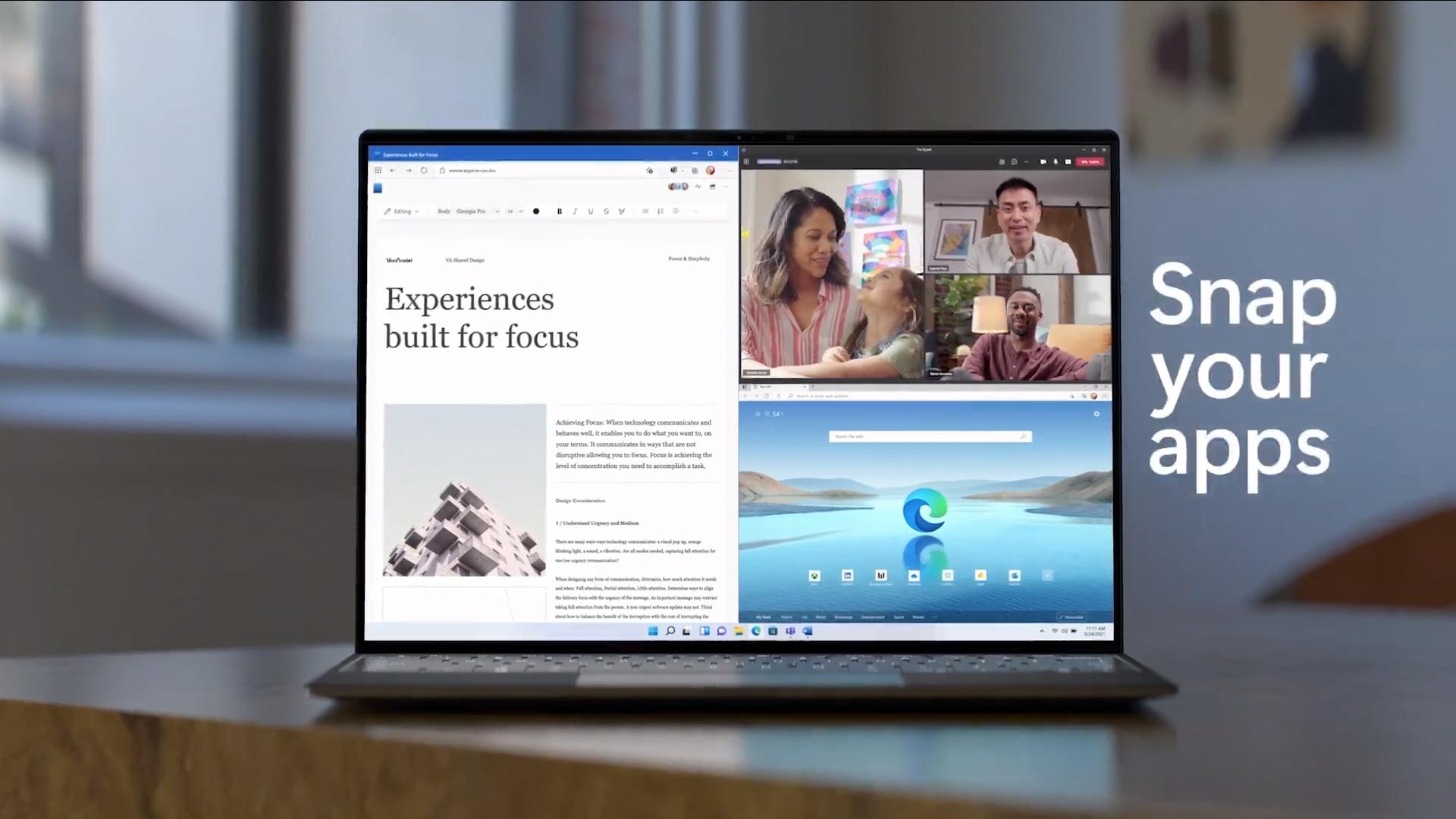
1. Use Snap Layouts for Multitasking
Snap Layouts help you arrange multiple application windows on your screen.
Move your pointer over the maximize button in an application window. Windows may show different layout options. Choose one and select the applications you want to place in the available spaces.
This is useful when you need to work with a browser, document, and spreadsheet at the same time.
2. Create Multiple Virtual Desktops
Virtual desktops let you organize different activities into separate desktop spaces.
Press Windows + Tab to open Task View. Select the option to create a new desktop.
You can use separate desktops for work, study, personal tasks, or entertainment. Switch between them through Task View or the supported keyboard shortcuts.
3. Use Windows + V for Clipboard History
Windows can keep a history of copied text and supported items.
Press Windows + V to open Clipboard History. If it is not enabled, follow the prompt to turn it on.
This feature is useful when copying several pieces of text. You can select an earlier copied item instead of copying it again.
Be careful when copying passwords or sensitive information. Avoid leaving confidential items in your clipboard history.
4. Take Screenshots Quickly
Windows 11 offers several ways to capture your screen.
- Windows + Shift + S: Opens the screen snipping interface.
- Windows + PrtScn: Saves a screenshot automatically on supported devices.
- Alt + PrtScn: Captures the active window on supported keyboard setups.
Use the Snipping Tool when you need to capture only a selected part of your screen.
5. Use Focus to Reduce Distractions
Notifications can interrupt your work. Windows 11 includes Focus settings that help reduce distractions.
Open Settings > System > Focus to configure a focus session. You can adjust its duration and notification behaviour.
Use this feature while studying, writing, attending online meetings, or completing important tasks.
6. Customize the Start Menu
The Start Menu provides quick access to applications and settings.
You can pin frequently used applications, rearrange available items, and adjust supported personalization settings.
Keep your most-used tools easy to find. Remove unnecessary shortcuts to make the Start Menu more organized.
7. Use Windows Search
Windows Search can help you find applications, settings, documents, and other items.
Press the Windows key and begin typing what you want to find.
For example, search for “Bluetooth settings” or “Power & battery” instead of navigating through several menus.
Search results depend on your device settings and indexed content.
8. Manage Startup Applications
Some applications automatically start when you sign in. Too many startup apps can increase startup time and use system resources.
Open Settings > Apps > Startup or use Task Manager’s Startup apps section.
Review the list and disable applications you do not need to launch automatically. Do not disable unfamiliar system components without understanding their purpose.
9. Adjust Power and Battery Settings
Laptop users can manage power consumption through Windows settings.
Open Settings > System > Power & battery to review power mode, energy saver, and screen or sleep timeouts.
Choose a suitable power mode for your activity. A more efficient setting can help reduce energy use, while performance-focused settings may be useful for demanding tasks.
Battery performance varies by device, hardware, and workload.
10. Use Nearby Sharing When Available
Windows supports sharing files with nearby compatible Windows devices through Nearby Sharing.
Check Settings > System > Nearby sharing to review availability and configuration options.
This can be useful when transferring files between supported devices without sending them through email. Keep sharing permissions limited to the devices or people you trust.
11. Use Dark Mode
Dark mode changes the appearance of Windows and supported applications.
Open Settings > Personalization > Colors and select your preferred mode.
Some users prefer dark mode for comfort in low-light environments. Its effect on battery life depends on the type of display and device.
12. Keep Windows Updated
Updates can provide security fixes, reliability improvements, and new features.
Open Settings > Windows Update and check for available updates.
Install important updates and restart your computer when required. Before major upgrades, back up important files and ensure you have enough storage space.
13. Review Windows Security
Windows Security includes built-in protection features such as Microsoft Defender Antivirus and firewall controls.
Open the Windows Security application to review your device’s protection status.
Keep security features enabled unless you have a clear reason and a suitable alternative. Avoid downloading unknown antivirus programs from suspicious websites.
14. Use Keyboard Shortcuts
Keyboard shortcuts can save time when performing common tasks.
| Shortcut | Function |
|---|---|
| Windows + E | Open File Explorer |
| Windows + D | Show desktop |
| Windows + L | Lock your computer |
| Windows + I | Open Settings |
| Alt + Tab | Switch between open apps |
| Windows + Shift + S | Capture part of the screen |
| Windows + V | Open clipboard history |
| Windows + Tab | Open Task View |
Practise a few shortcuts each day until they become part of your routine.
15. Clean Up Temporary Files
Unnecessary temporary files can use storage space.
Open Settings > System > Storage and review the available cleanup options. Storage Sense can help manage temporary files automatically according to your settings.
Review the files selected for deletion before confirming. Do not remove files you still need.
Frequently Asked Questions
1. Are these Windows 11 tips suitable for beginners?
Yes. Most of these features are built into Windows 11 and can be used without advanced technical knowledge. Some options may vary by device or Windows version.
2. How can I make Windows 11 faster?
Review startup applications, free up unnecessary storage, install updates, and avoid running too many demanding applications simultaneously. Performance also depends on your computer’s hardware.
3. Can I use Windows 11 keyboard shortcuts on a laptop?
Yes. Most standard shortcuts work on laptops, although some keyboards may require an additional Fn key for certain functions.
Conclusion
Windows 11 offers useful tools for multitasking, screenshots, file sharing, security, storage management, and productivity. Learning these features can make everyday computer work more convenient.
You do not need to try all 15 tips at once. Start with Snap Layouts, clipboard history, keyboard shortcuts, and startup management. Explore the remaining settings as you become more comfortable.
Which Windows 11 feature do you use most often? Share your favourite tips in the comments and explore more technology tutorials on our website.